
Common Symptoms of CMOS Battery Failure
- POST or Boot Warning Messages - During POST you may see messages like:
- “Alert! System battery voltage is low”
- “Time‑of‑day not set – please run SETUP program”
- “CMOS battery failure”
- “RTC lost power”
- Date/time does is incorrect and does not persist after correcting.
- Date/time resets to a default value (often 01/01/2000 or 01/01/1970) after power is removed.
- BIOS time is wrong on every cold boot
- BIOS Settings Do Not Persist
- Boot order reverts to defaults
- SATA/NVMe controller mode changes (e.g., RAID → AHCI)
- Legacy/UEFI mode flips back to default
- Server may fail to boot
- RAID arrays may appear missing
Resolution
Replace the CR2032 coin battery (or model‑specific part). Swank can ship a replacement to the domestic US. If you are outside of the US, you will need to purchase one locally.
CMOS Replacement Guidance
The following are general steps for replacing the CMOS battery in your system. Please note that your specific model may differ from the example shown. For detailed instructions tailored to your server model, please search for your service tag on the Dell support website: https://www.dell.com/support/home/en-us
NOTE: It is recommended that you always use an antistatic mat and antistatic strap while working on components inside the system.
- Shut down the server and disconnect power.
- Remove the system cover and air shroud (if applicable)
-

- Remove the expansion card risers (if installed)
- Remove the PCIe expansion cards (if installed)
- Remove the expansion card risers (if installed)
-
- Locate the battery socket

CAUTION: To avoid damage to the battery connector, you must firmly support the connector while installing or removing the battery.
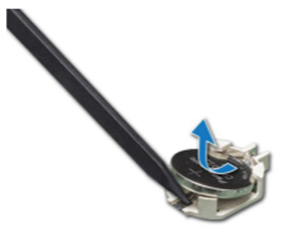
- Use a plastic scribe to pry out the system battery
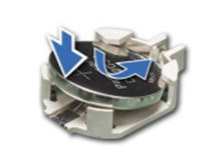
- To install a new system battery, hold the battery with the positive side facing and slide it under the securing tabs
- Press the battery into the connector until it snaps into place
Reassemble the system
- Install the low-profile PCIe cards (if applicable)
- Install the expansion card riser and connect the power or data cables to the expansion card risers (if applicable)
- Install the air shroud
Verify the system
- While booting, press F2 to enter the System setup
- Ensure that the battery is operating properly
- Enter the correct data and time in the System Setup Time and Date fields
- Restore the BIOS settings (if applicable)
- Exit the system setup
Note: If your CMOS battery has already failed, you may need to set the BIOS settings manually again.
Comments
0 comments
Please sign in to leave a comment.